
Eskedy's own Commerce system doesn't include a built-in option for accepting donations. Though it's certainly possible to solicit donations by listing them as a "product" on your site, the standard per transaction fees and percentages are still charged by our various cc processors.
That said, there are a number of ways to accept donations through your site, with the most commonly used of these being PayPal's Donation Button. How can you create one of these buttons and add it to your site? Let's find out.
Please note that PayPal requires verification of your status as a non-profit before allowing donated money to be withdrawn. This process is handled entirely through your PayPal account; you'll be prompted to verify your status in PayPal after receiving your first donation.
Start by logging in to your PayPal account and then visiting the PayPal button creation page.
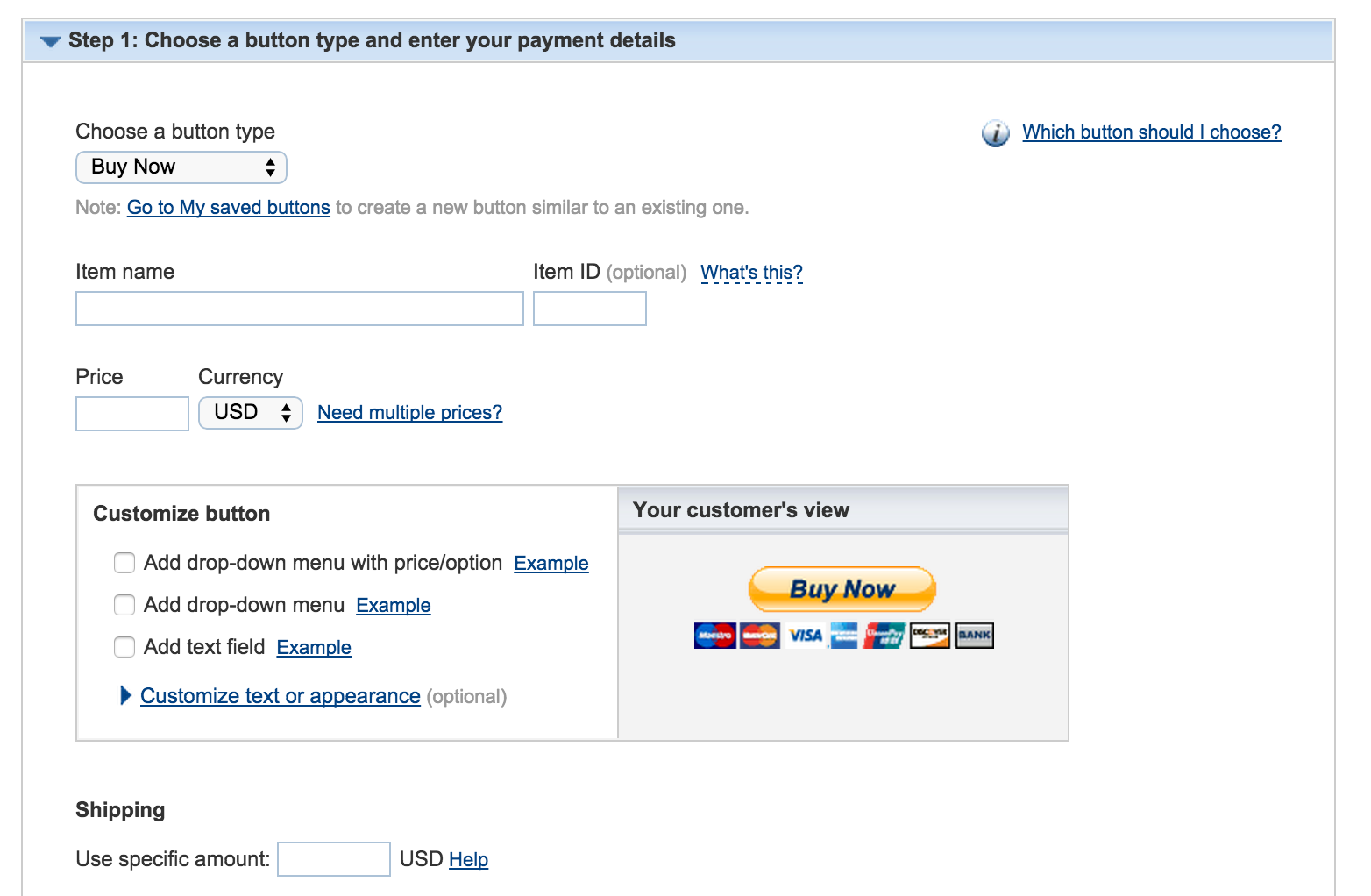
Select the Donations option from the Choose a Button Type drop-down menu.
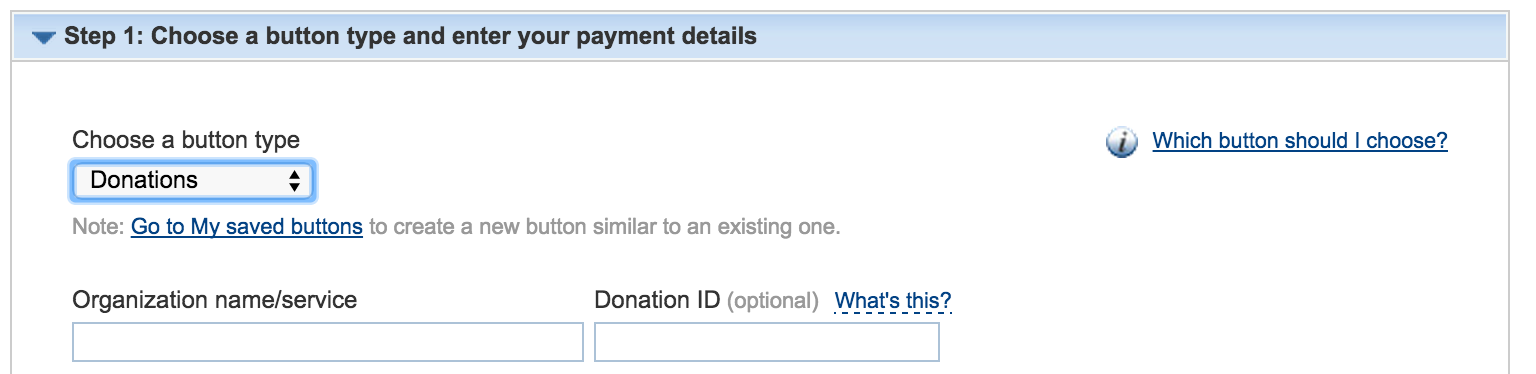
Enter the name of your Organization. You'll notice a "Donation ID" field here as well; this ID is only meant to be used for your own reference and is optional as well as unnecessary.
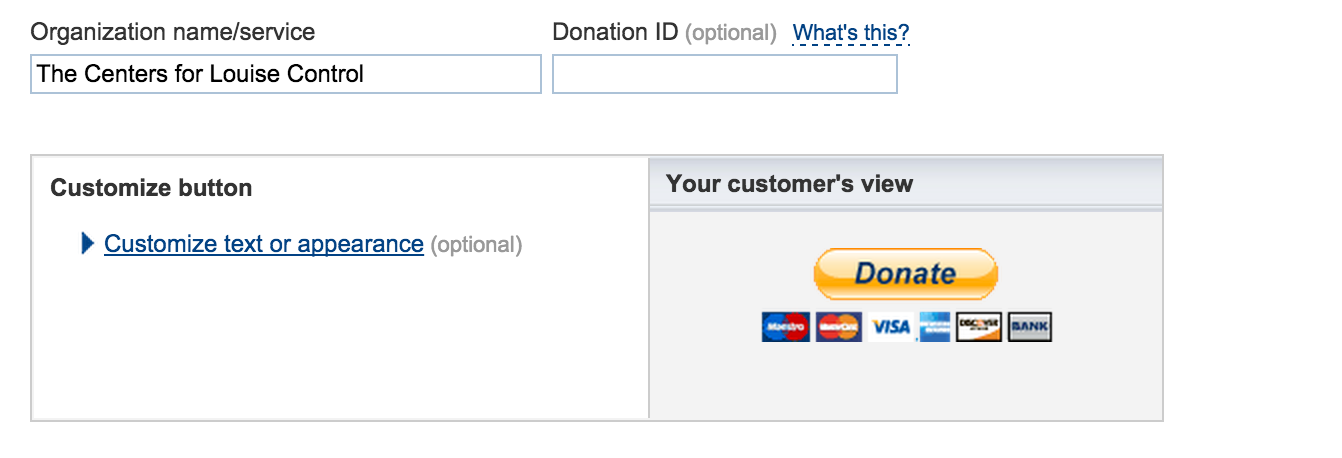
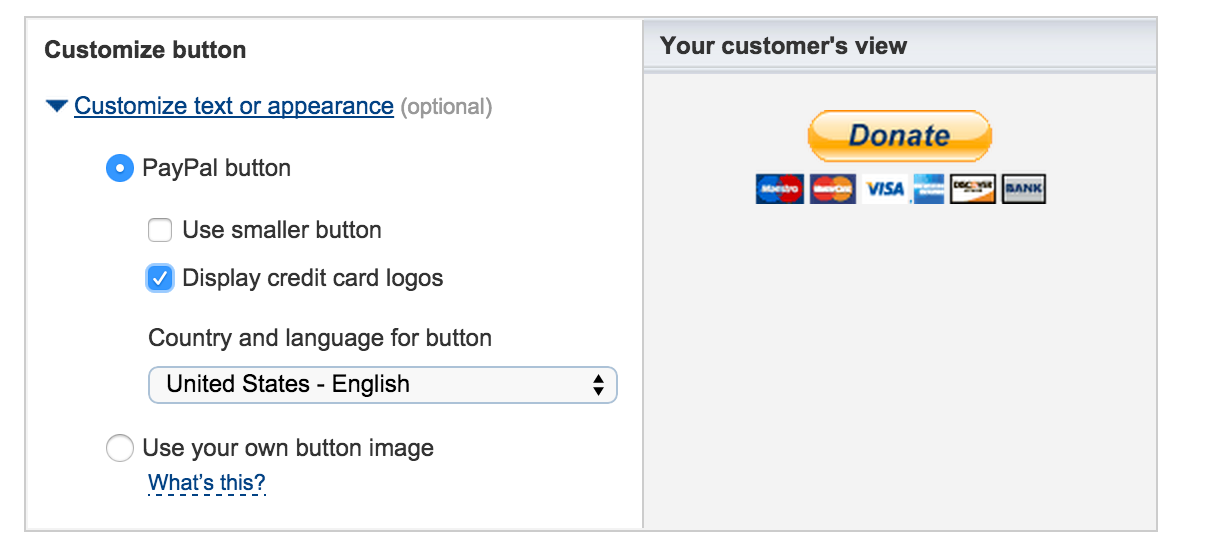
PayPal provides some very basic customizations for their button. You can make it smaller and turn off the CC logos. But that's about it
Choose the currency you'll use to accept donations. USD is the default, but there are numerous others to choose from.
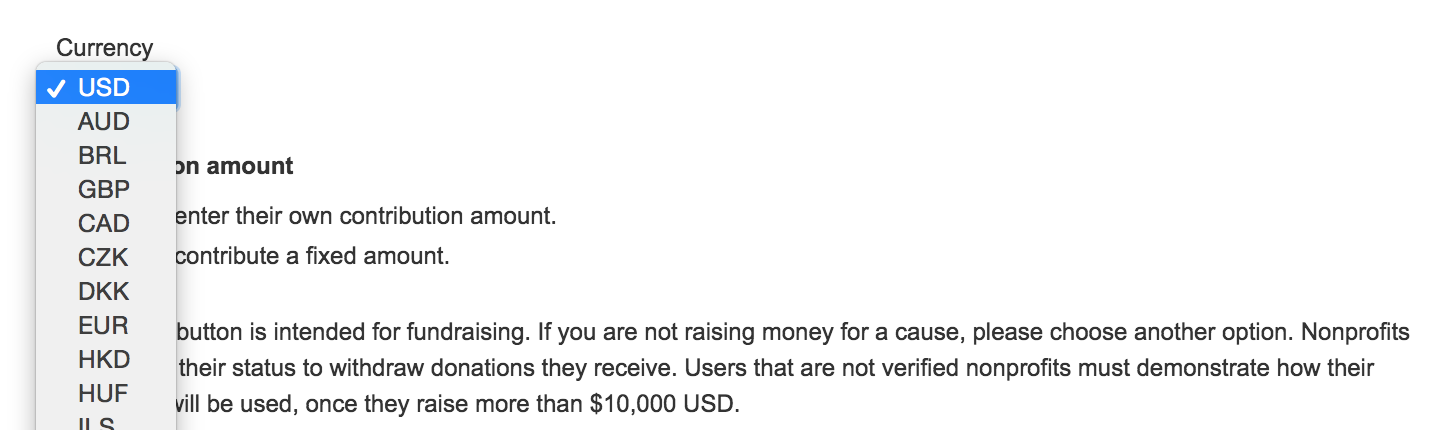
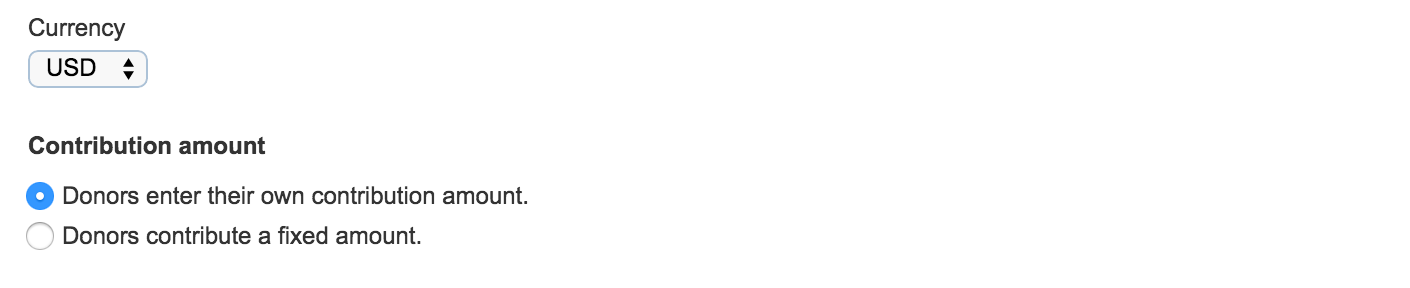
Determine how contribution amounts should be entered. Can donors enter whatever level of contribution they like or will they be donating a fixed amount set by you?
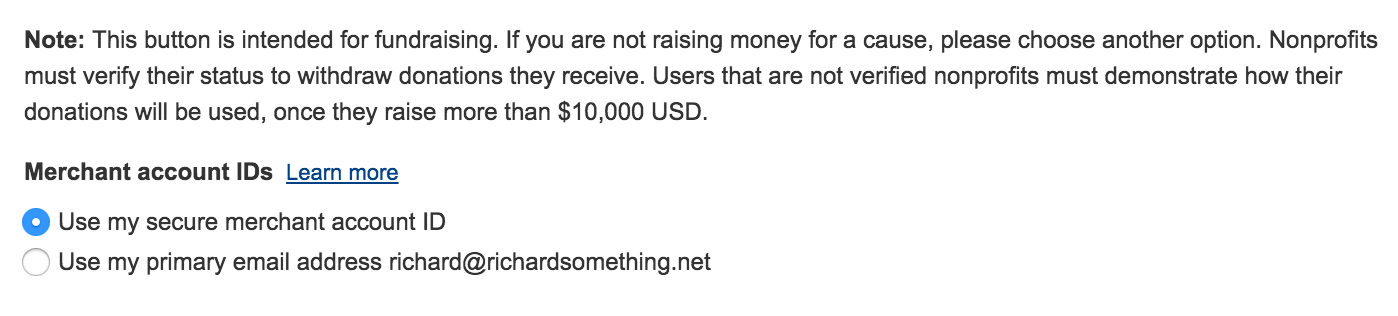
Associate the button with either your PayPal account ID or your account email address. We recommend leaving this set to ID, as the ID option is more secure and both options otherwise work in the exact same way.
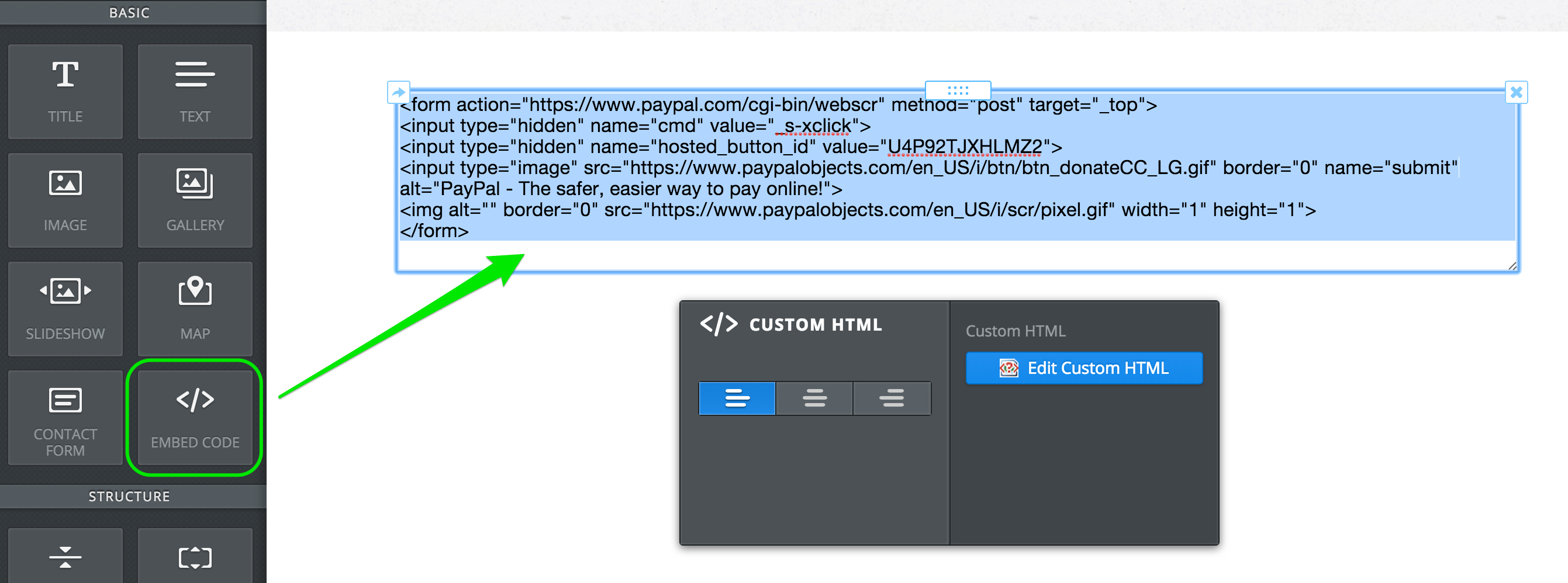
After you've followed these steps click Create Button. This will generate code that you'll copy and paste to your Eskedy site. Select all the code and copy it.
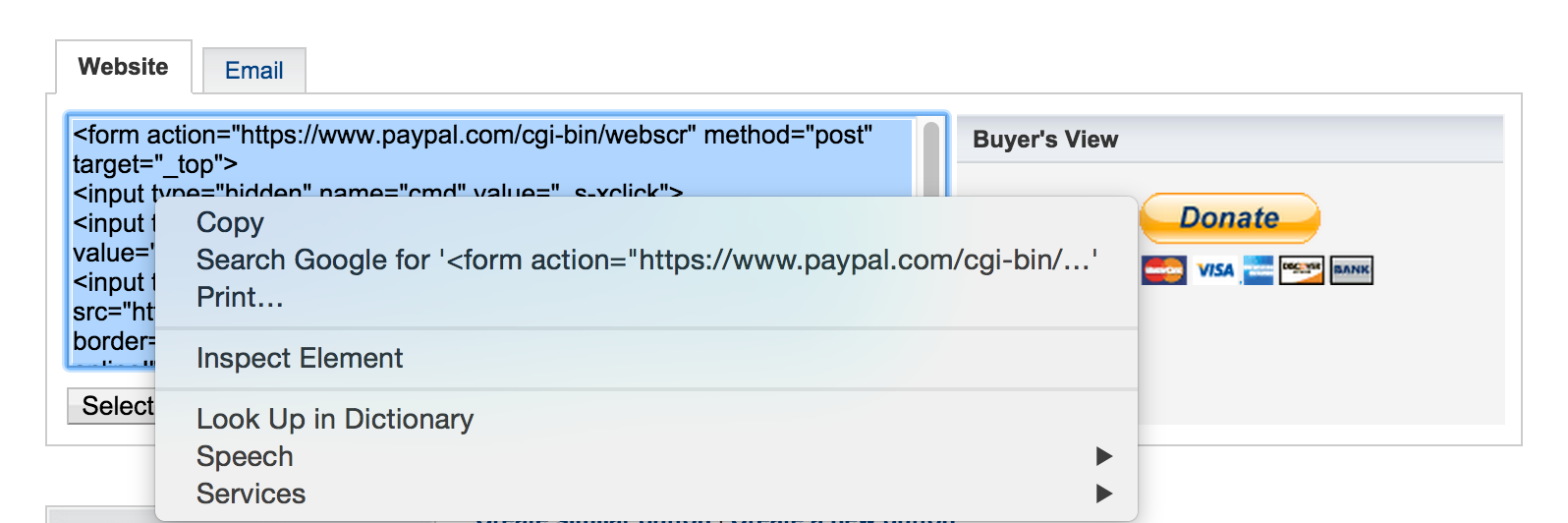
Then edit your Eskedy site, drag an Embed Code element wherever you'd like the button to appear, and then paste this code into that element.
The button will appear on the page as soon as you click anywhere outside of the embed code element.
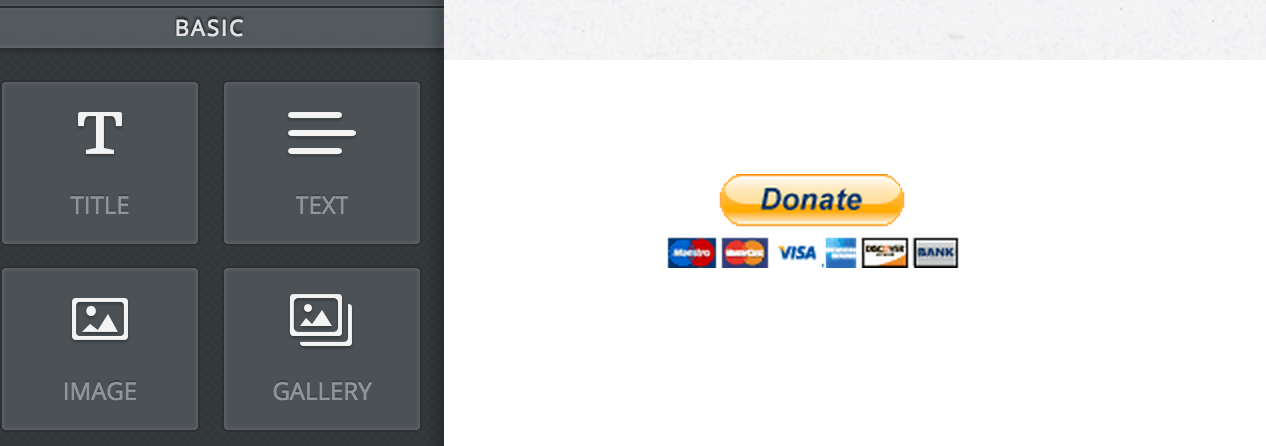
Publish your site to make the button live so visitors can begin donating. It's also very helpful to provide context to your donation button, so be sure to use text and image elements in addition to the button to explain why a visitor would want to donate to your cause.