
We provide numerous currency options for your store. How can you select the one you want?
Start by going to Store Settings.
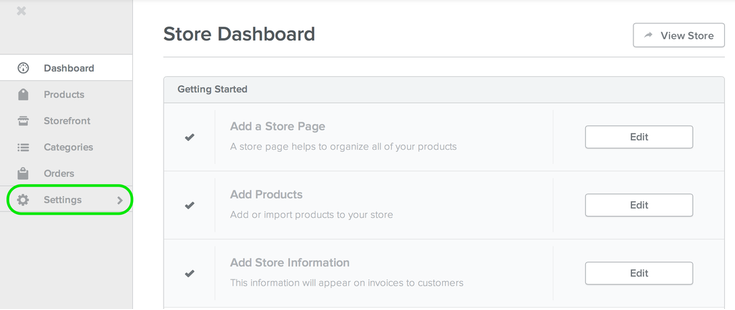
The very first setting, in the very first section of Settings, is Currency. Click the drop-down menu there to select the currency you want to use for your store.
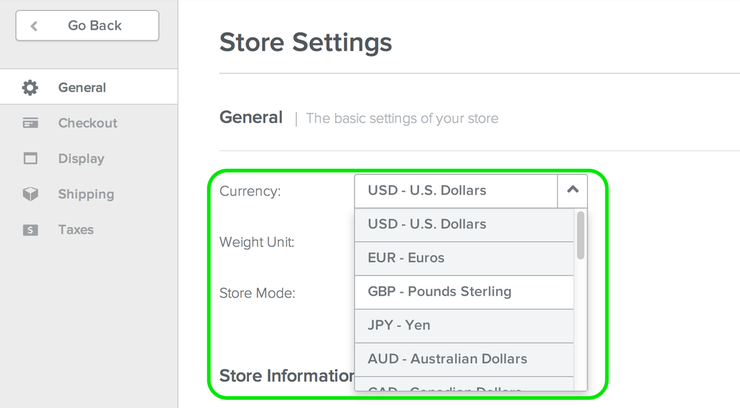
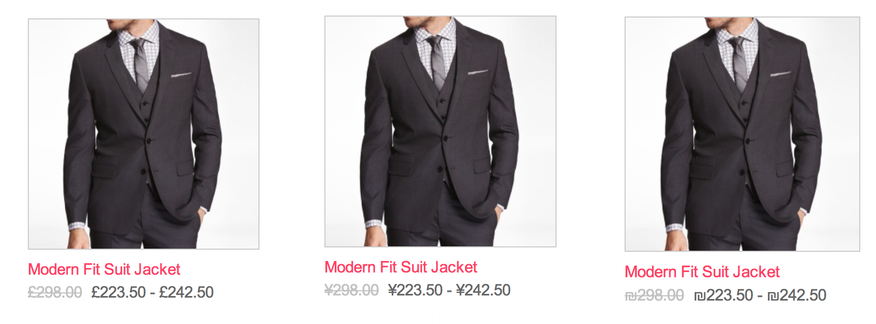
Changing the Currency in settings will change any currency symbols displayed to your customers, though you'll need to click Publish for the change to take affect on your live site.
You may see a message asking you to disconnect from PayPal or Stripe before you can change your currency.
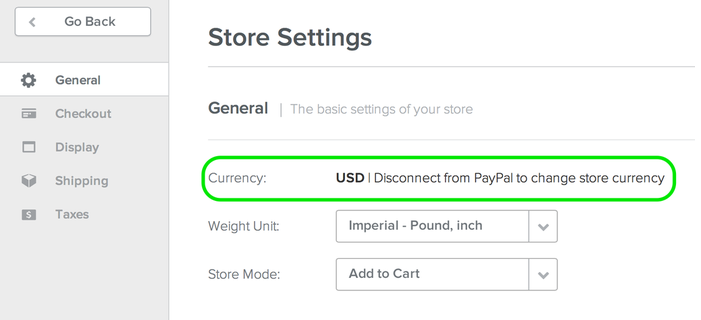
If you see this message, all you need to do is go to the Checkout section and briefly disconnect from your payment processor.
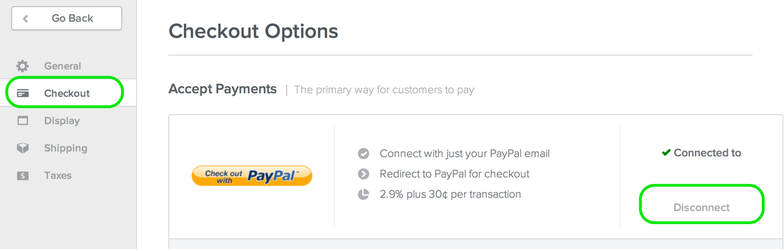
Then go back to General, select the Currency you want, Save Settings, go back to Checkout, and click the button to Connect to your payment processor again. Though several steps are involved, this should take no more than a minute or two.
We support
19 currencies, which represent all the currencies available through at
least one of our current payment processors. Keep in mind that you
select only one currency per store, but that doesn't mean people in
other countries who are using other currencies can't make purchases; it
just means their purchases will be processed in the currency you've
selected. This is much the same way that someone in Australia can make a
purchase from amazon.co.uk because their cc processor simply converts
their payment from Australian Dollars to Pounds Sterling.
Please
note that if a currency isn't listed in the settings drop-down there's
no way to add it, since the lack of that currency isn't due to a random
and inexplicable obstinance on our part, but by our current inability to
process payments in that currency. We'll be adding more options as time
marches on!