
Your public store is made up of three parts:
- Your Products, each of which is automatically placed on its own page.
- Navigable Categories and Sub-Categories into which these products are sorted.
- A Storefront table of contents where the various categories (along with any number of featured products) are shown off.
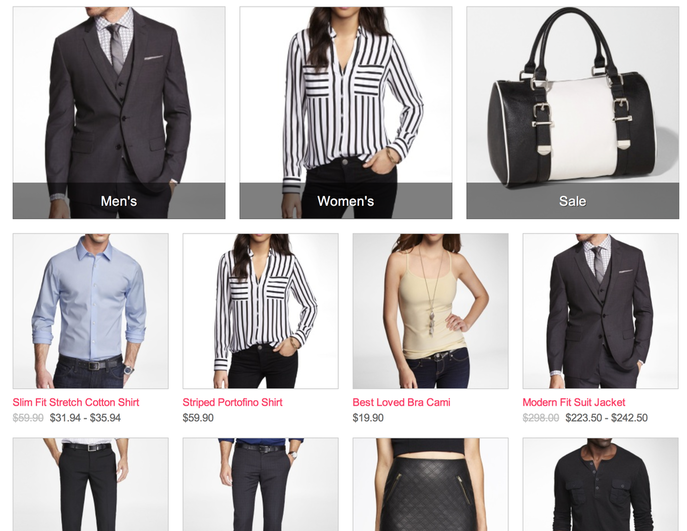
To give another example, a clothing store might be sorted into
categories for Men's, Women's, and Sale clothing, with Sub-Categories
for Pants, Shirts, Skirts, Socks, Shoes, and any other kind of clothing
the store might have on sale. Then the Storefront would act, like in the
bookstore example, as a table of contents leading customers to the kind
of products they're looking to purchase. And that would look something
like this image:
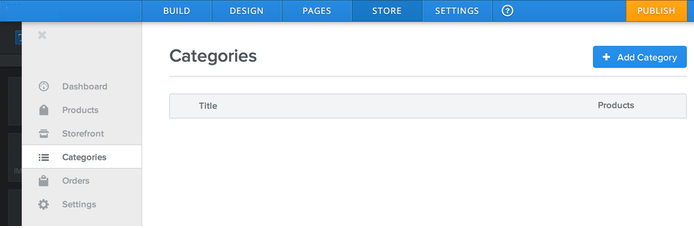
Click Add Category to create a new category.
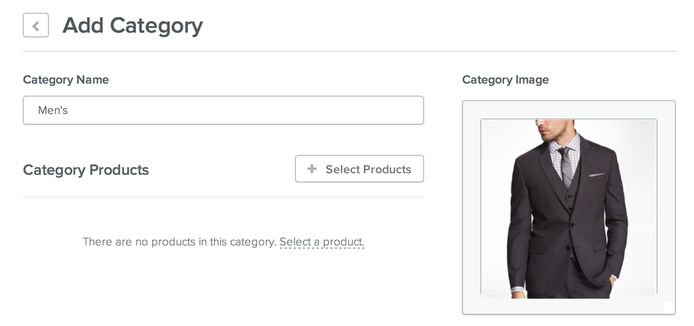
The category will need a name and an image that properly represents the category.
Then you'll use Select Products to choose products that should be assigned to this Category. Don't fret if you haven't yet added all the products you want to include in the category as you can assign more products to a category at any time. And keep in mind that products can be assigned to multiple categories (a pair of socks might, for example, be assigned to both a category called Men's and a category called Men's Socks).
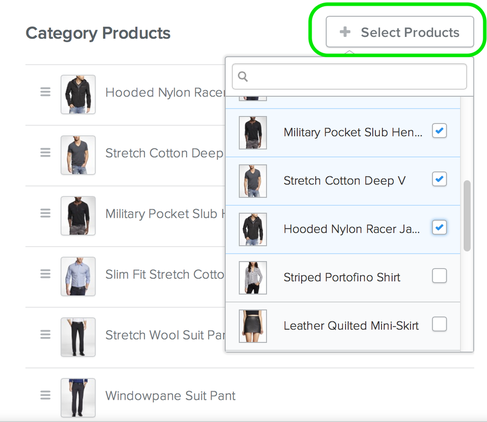
Once you've taken these three steps, you can Save Category and it'll be added to your list of categories. Click the category when / if you need to edit it in the future.
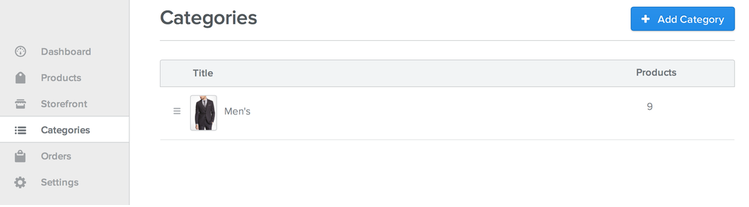
Use the same Add Category button to continue adding however many categories you need.
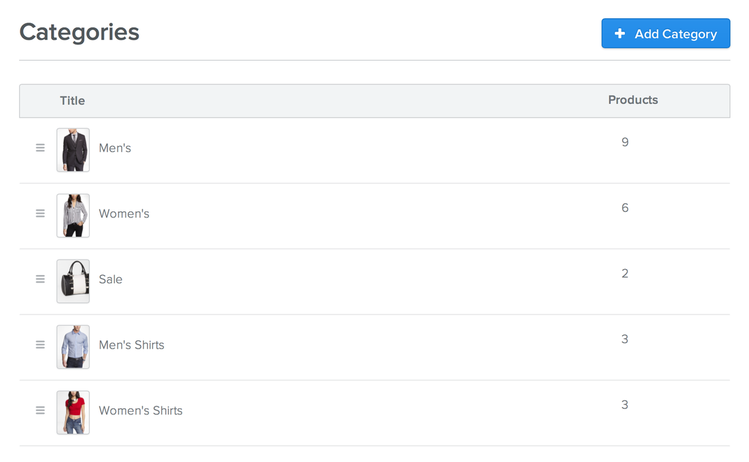
Click and drag categories to change the order in which they're shown. And drag a category under and to the right of another category to turn it into a sub-category of that category.
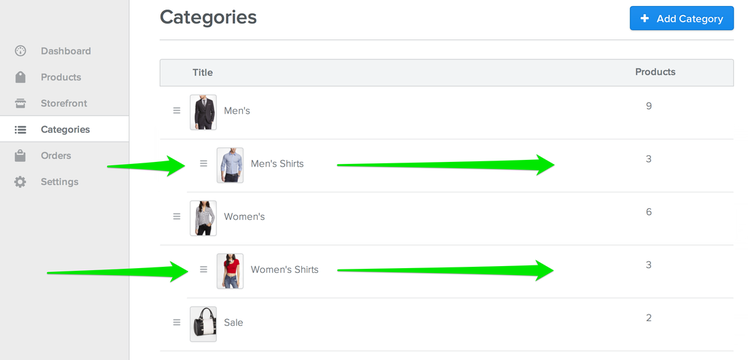
Categories show up in the Storefront table of contents, while Sub-Categories only show up if the customer opens up the Category to which the Sub-Category is connected.