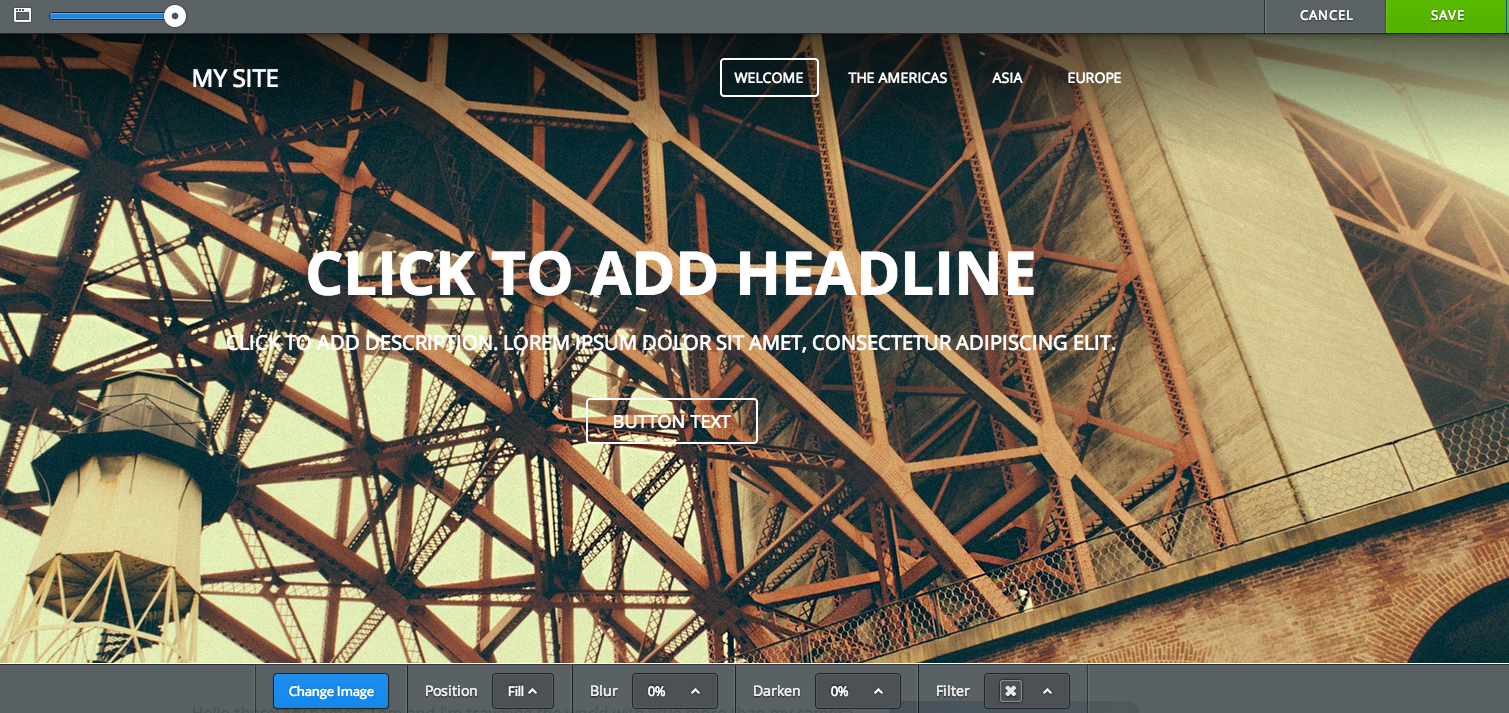
All themes include a header image at the top of each page. As it's
doubtful you'll want to use this default image on any of your pages,
we've made this header very simple to edit and change.
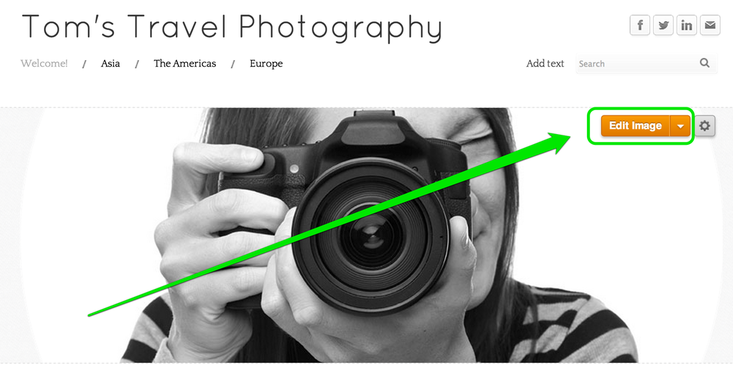
To get started, scroll over the header image and click the Edit Image button:
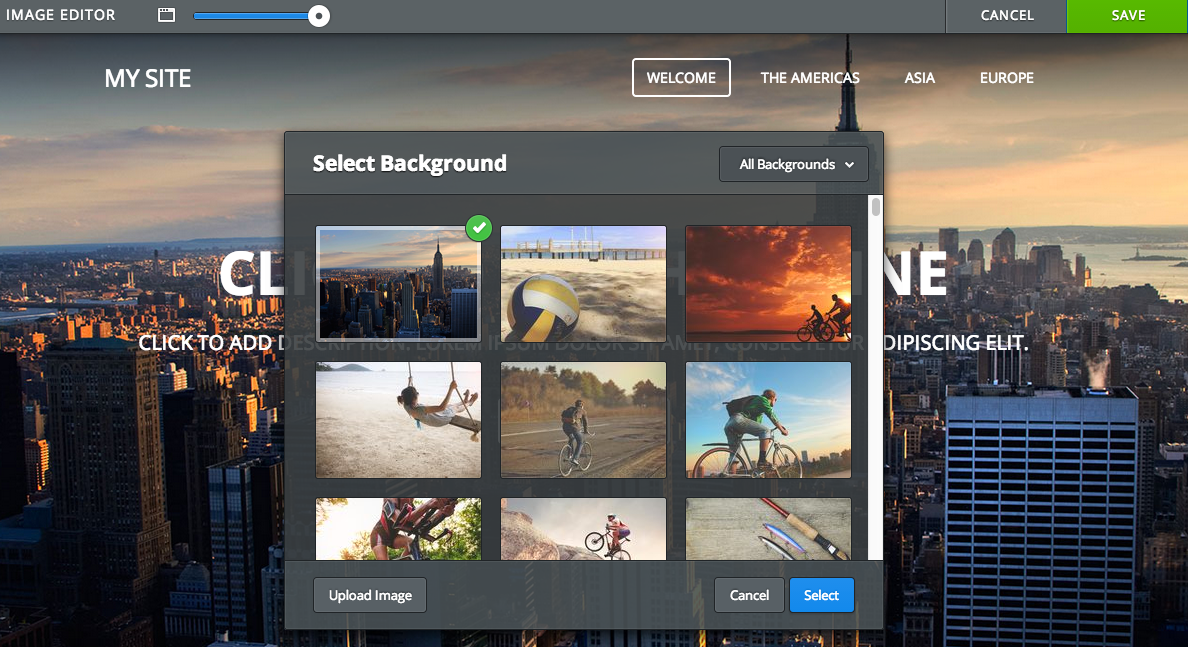
Depending on your theme, you’ll be prompted by one of two interfaces. Either one that asks you to Select Background:
Or one that asks you to Add Image:
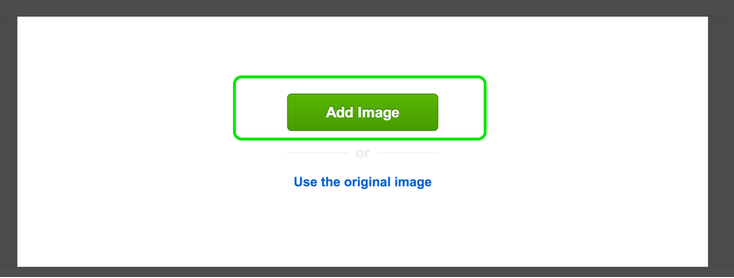
Let’s start by looking at option that prompts you to Add Image and then circle back to the Change Background option after.
Following the Add Image option will open up a dialog box that allows you to upload an image from your own computer or to search for an image from the Flickr / Creative Commons Stock Photo Library.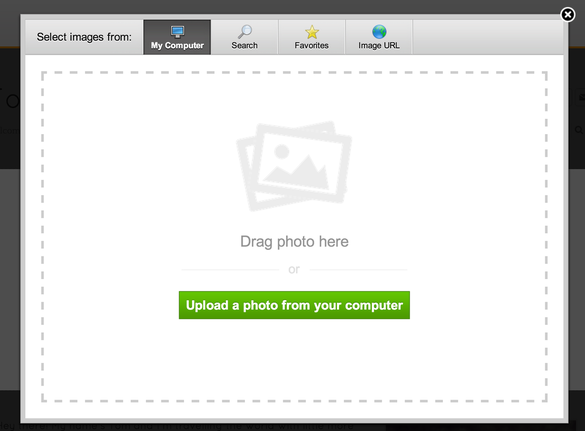
Once you upload or find an image, you'll be able to edit that image. This particular image is taller than the banner area.
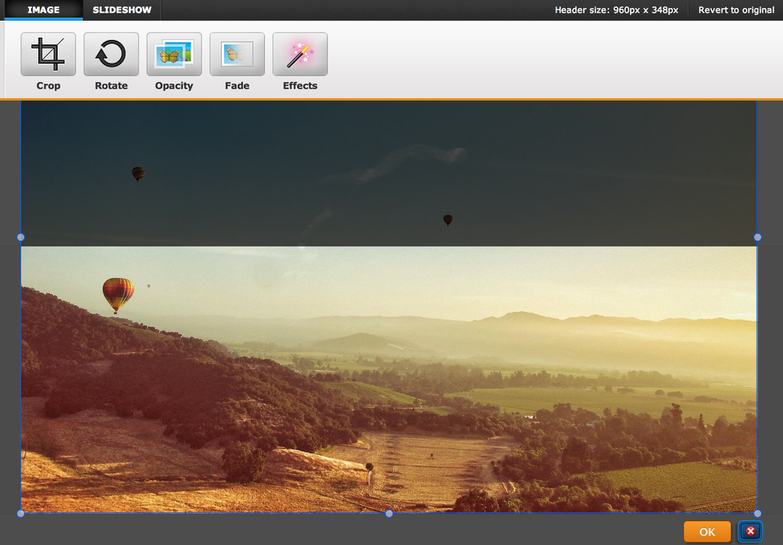
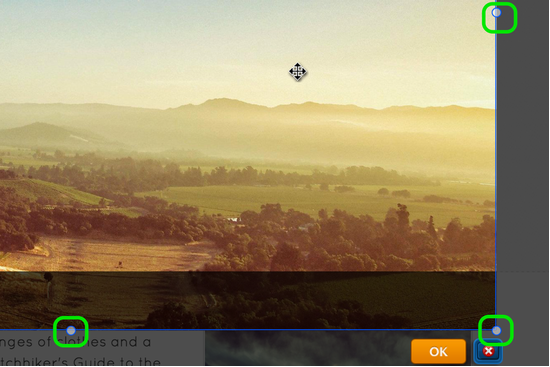
But header images can be re-sized using the little bubbles at each corner and side of the image.
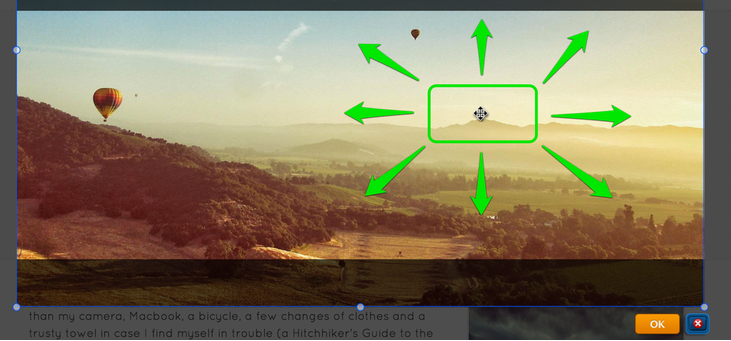
And an image can be dragged to better fit the header by clicking anywhere on it and dragging it.
Use the provided tools at the top of the page to edit and add text / effects to the image as needed.

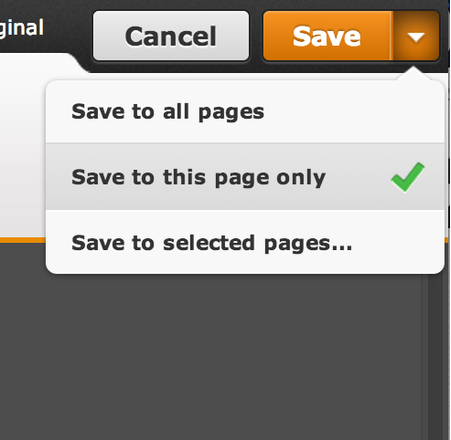
When you're happy with an image, select the Save button to Save it. You can use the arrow to the right of the Save button to choose whether to save the image to every page of the site, just this page or to select only certain pages to save it to. In that way you can have different headers on different pages if you want.
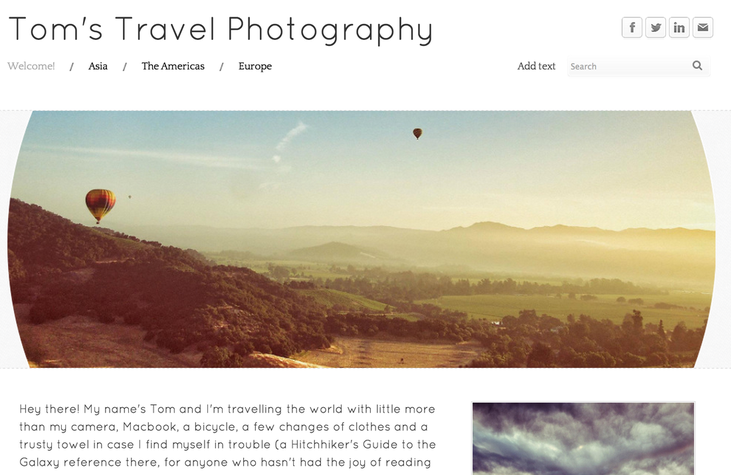
And here's how the page looks with the Saved image.
If you’re prompted to Select Background when you change the header, then the process is a little different. You’ll first see a dialog box that contains a collection of high-quality stock photos that you’re welcome to use.
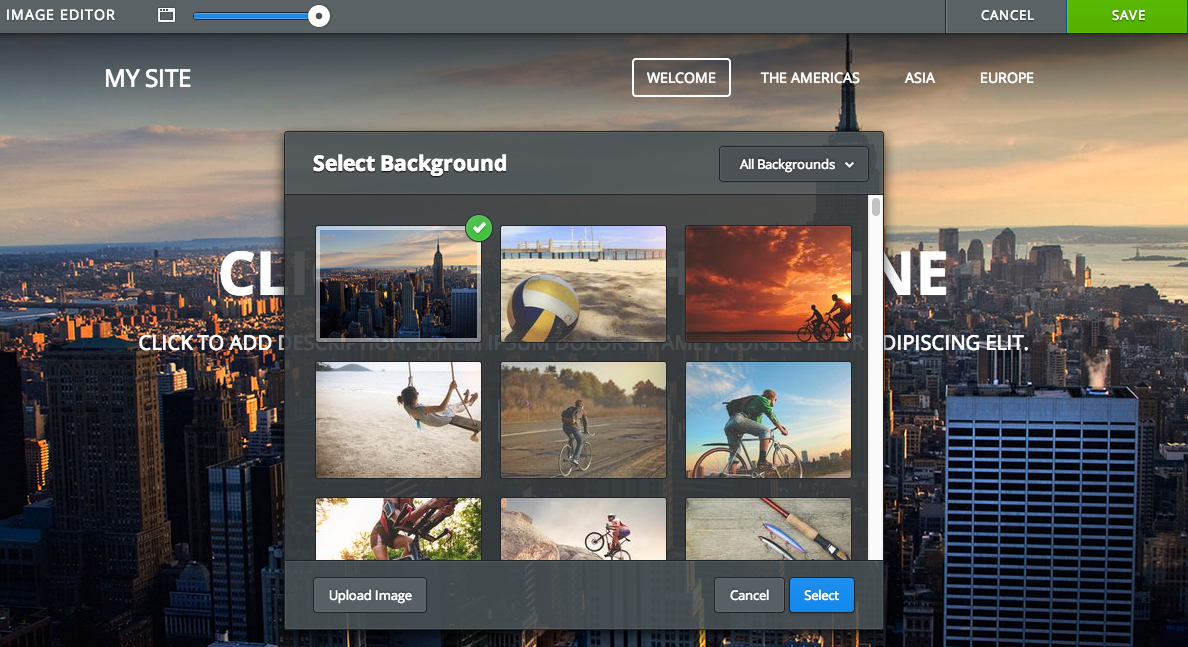
Or you can upload an image from your own computer using the Upload Image option in the Lower left of that same dialog box.