
Elements are the building blocks of a site. All your text, pictures, video and other great content (aside from a few exceptions like header images, which we’ll cover later) are added through elements.
How do they work?
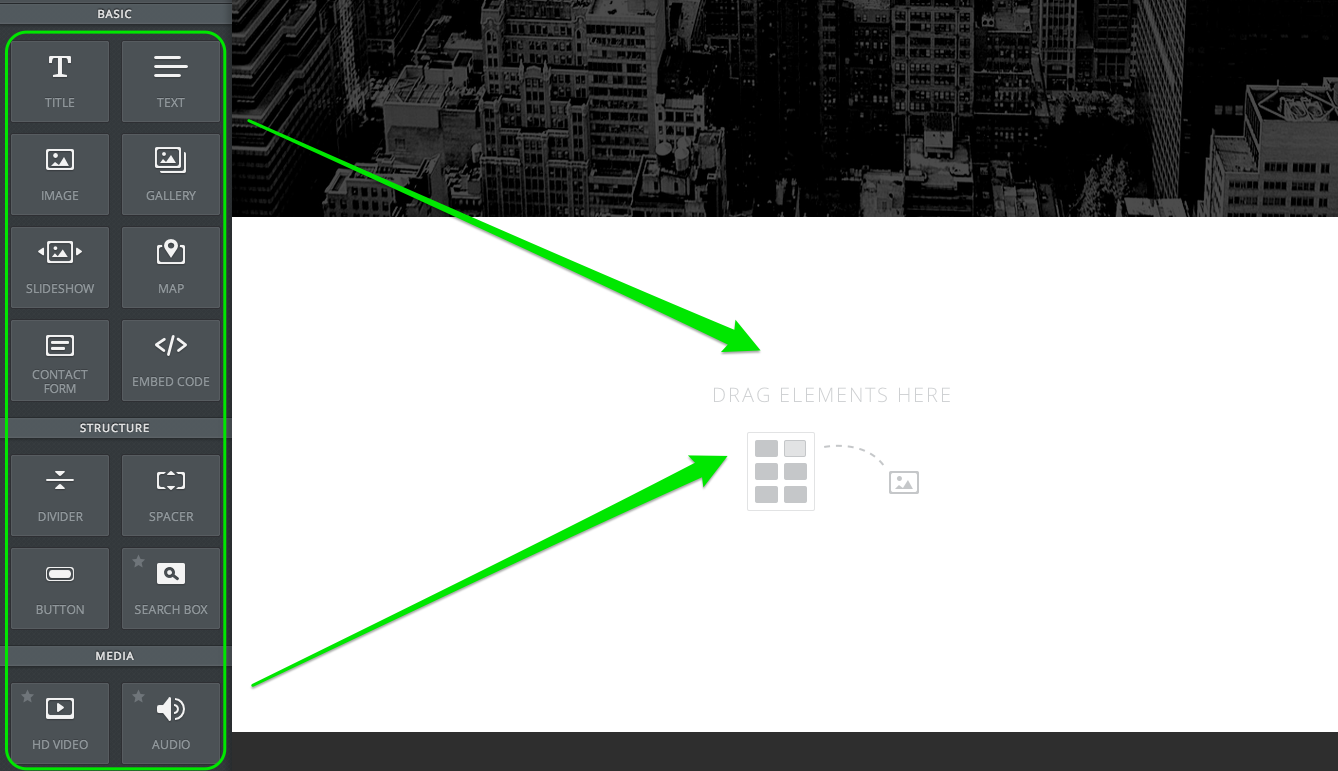
Adding an element to a site is as simple as clicking on that element, then dragging-and-dropping it to a page.
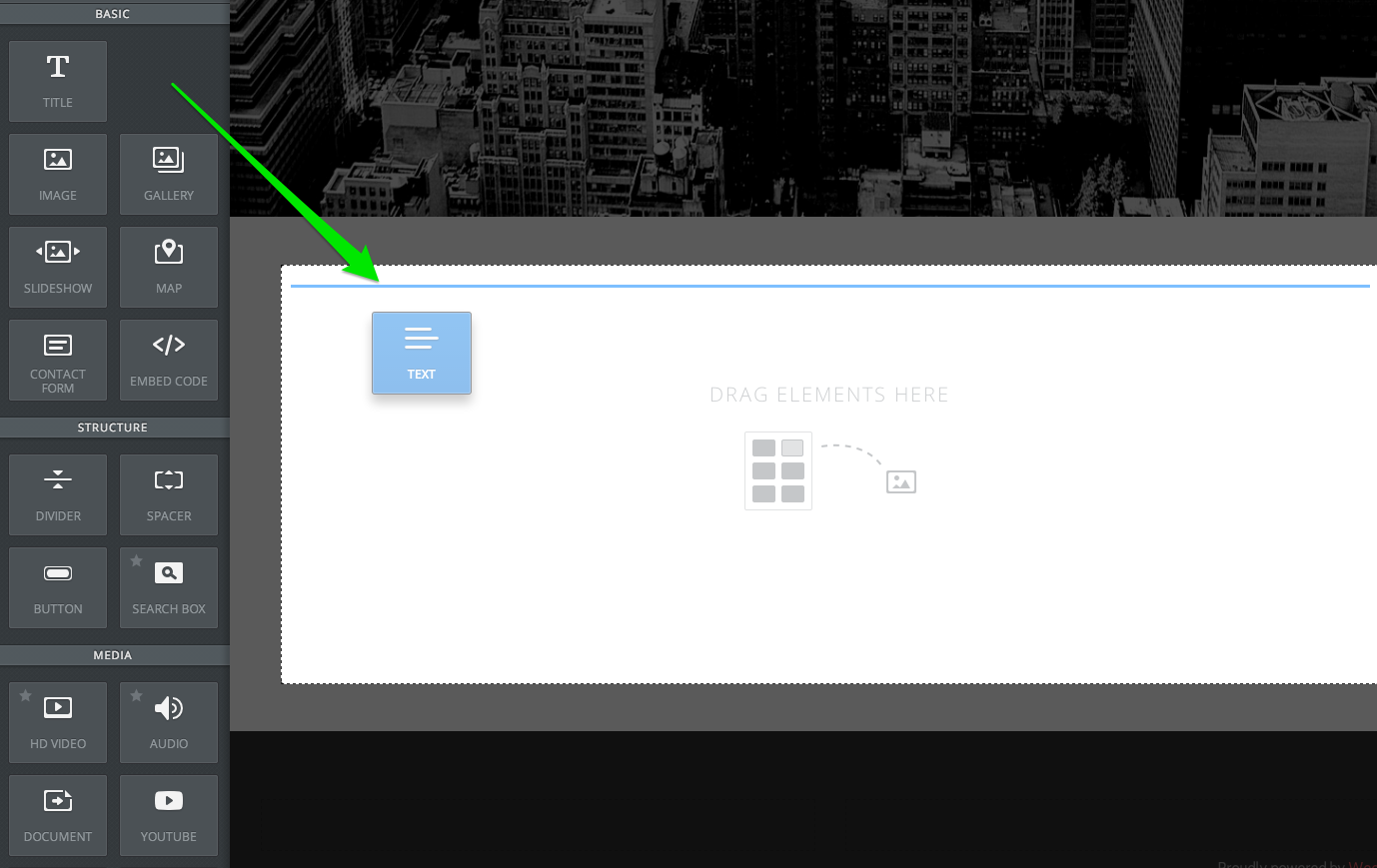
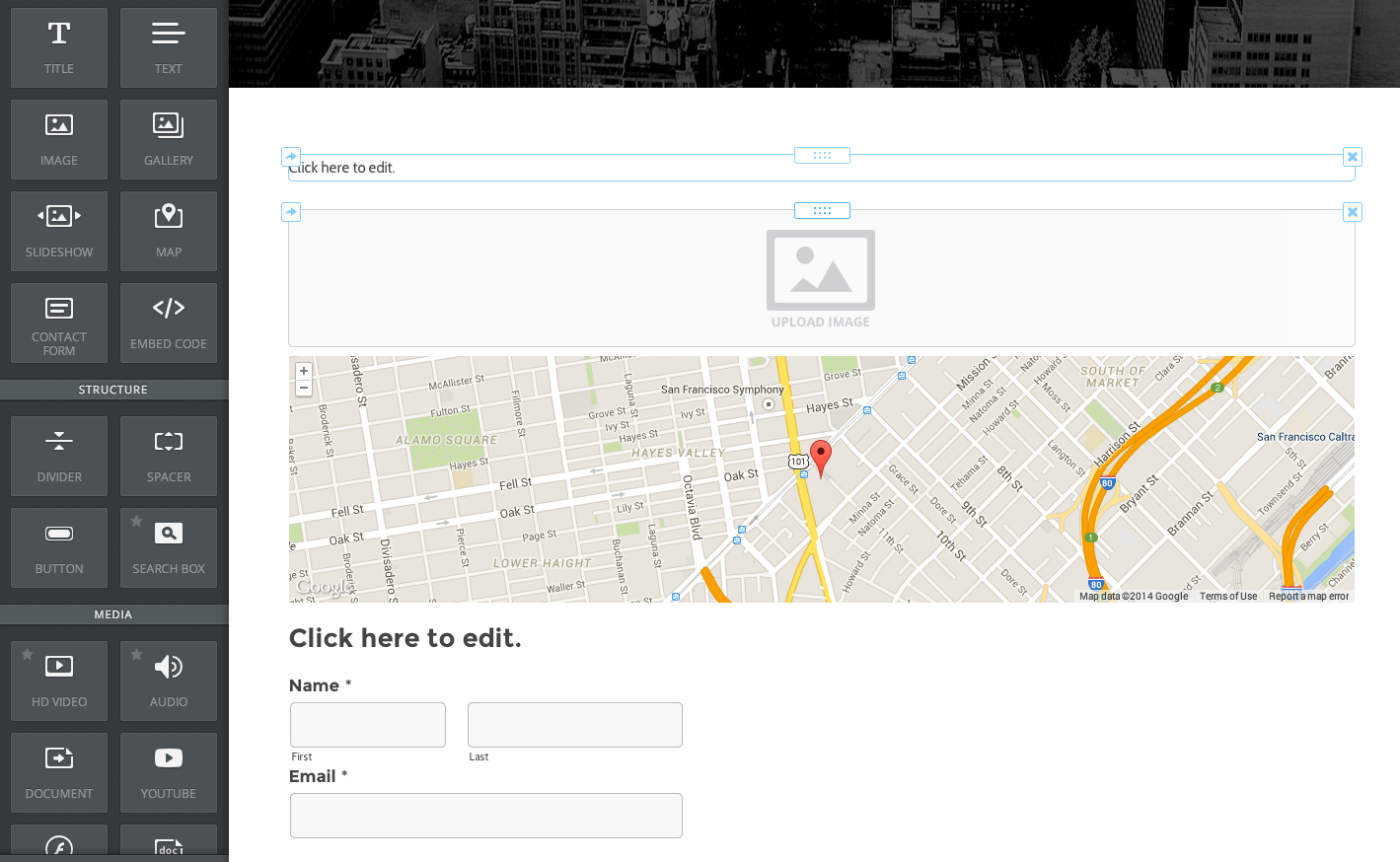
You can add as many elements to a page as you want or need, the page itself will get longer and longer to accommodate however many elements you drag on, as we can see with this example:
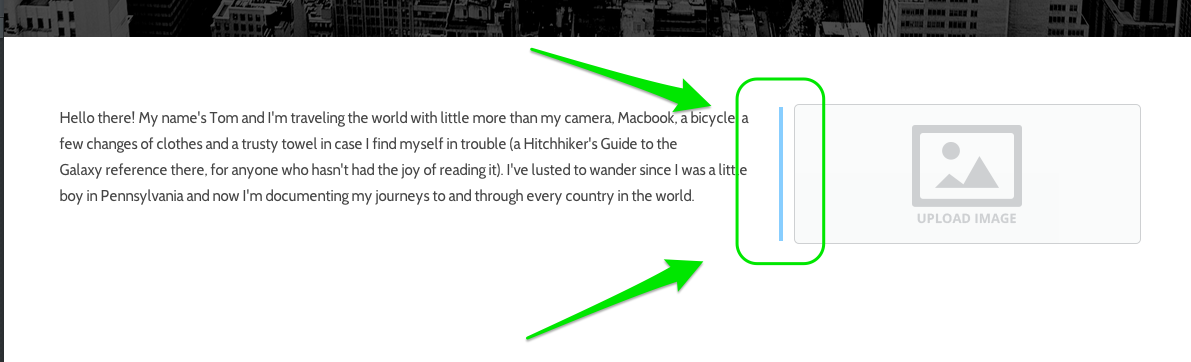
Elements stack one on top of the other if left to their own devices, but you can also quite easily place them side-by-side. Just drag one element to the right or left of another element until you see a blue, vertical line.
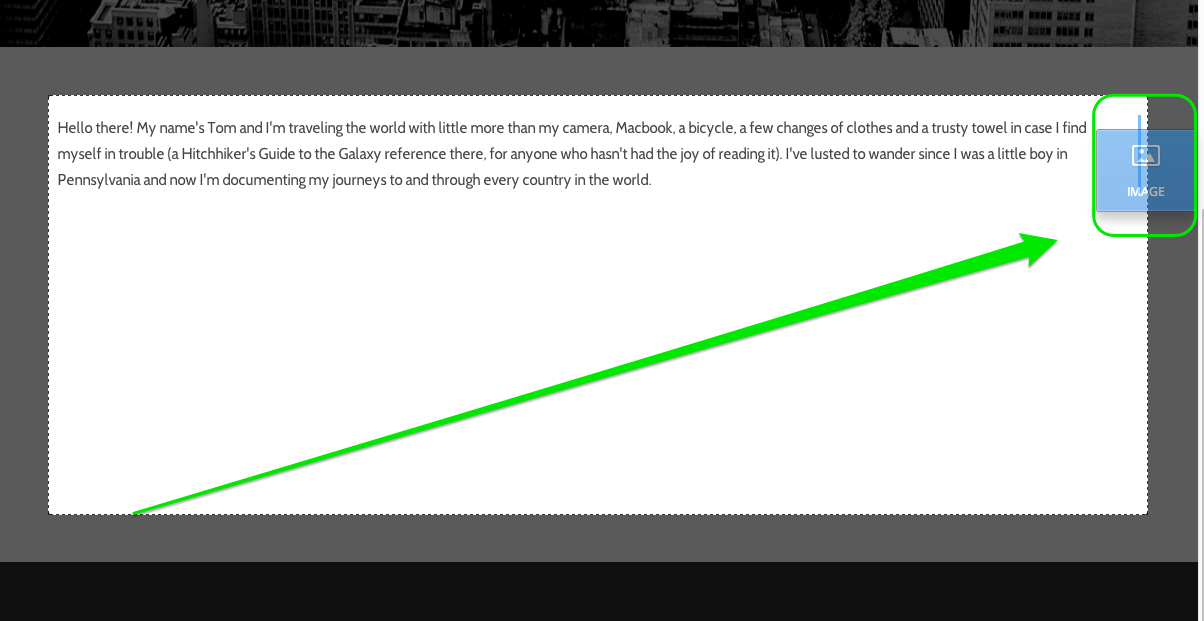
When you drop the element, we'll generate two columns on the page that place the elements side-by-side with equal space allotted to each.
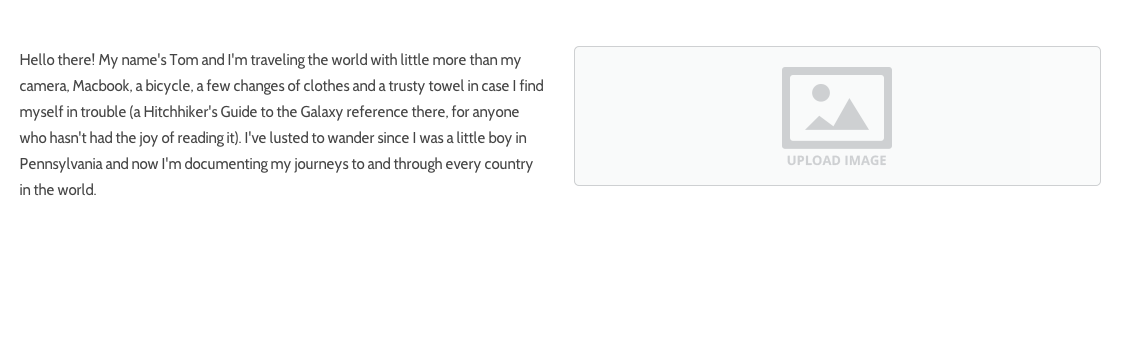
You can adjust the space between these columns by using the narrow bar that appears between them. Just click and drag to the left or right.
Aside from the various functions of each element, like adding text and uploading photos (which will be discussed throughout this guide), all elements include three basic options to be deleted, copied, or moved on the page. You'll see each of these options when you scroll over any element.

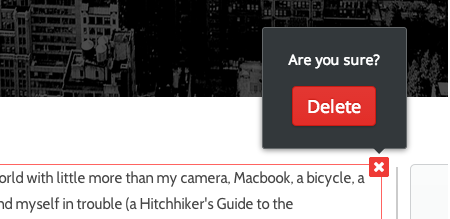
The "X" in the upper right allows you to delete an element. Be careful when deleting, though, as a deleted element can't be brought back.
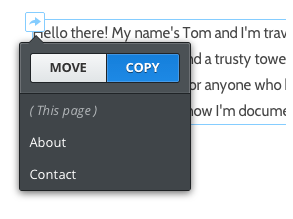
The arrow in the upper left allows you to copy an element (to the same page or another page) to to move an element (to another page).
And clicking on the box between the "X" and the arrow, allows you to pick the element up and drag it around the page.

Let's take a closer look at two specific kinds of elements: Text and Images.